
Archicad 3D window
AI renders from an Archicad 3D view
Save the Archicad 3D window as a PNG, upload it, and ArchFor turns it into four photoreal renders from the same viewpoint. You set no lights, surfaces or PhotoRendering options.
- Save from the 3D window with File > Save As and an image format
- An OpenGL view in Shading mode uploads as Model screenshot
- Works with any project type; only the PNG matters
Updated November 3, 2026
Before and after
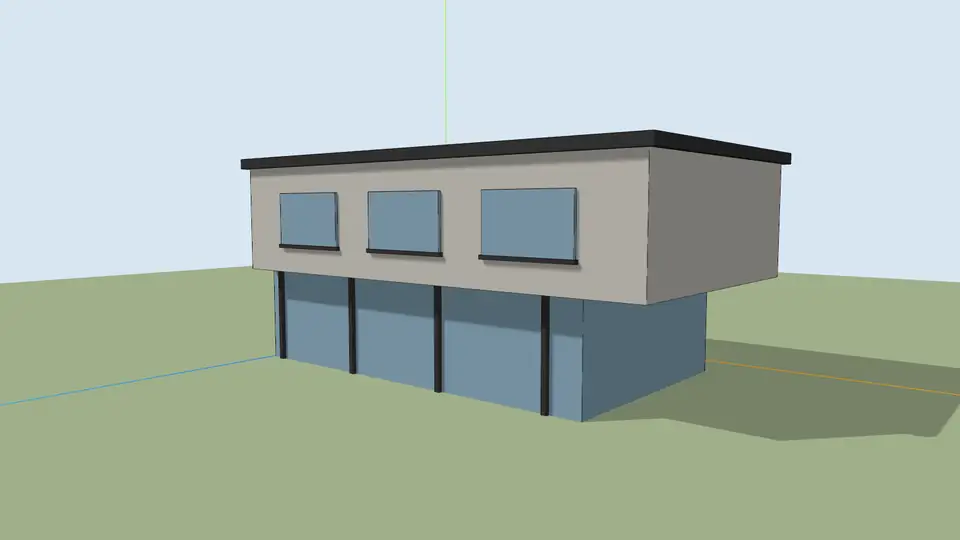
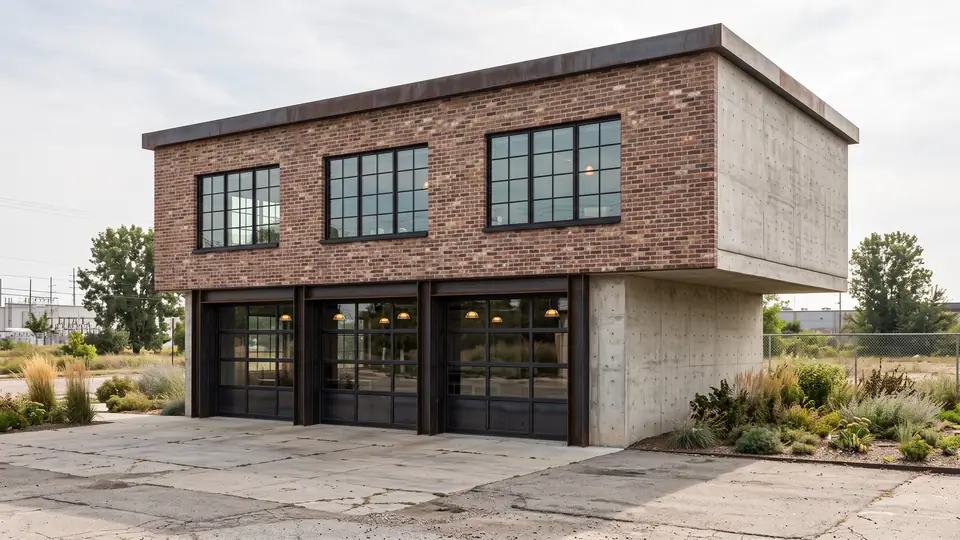
Test model, Nano Banana 2.1 at 2K, not retouched. How we tested
Three steps, nothing to set up
- 01
Screenshot your view
In SketchUp use File → Export → 2D Graphic, or just take a screenshot. Shadows on, axes and edges off.
- 02
Pick a style and a time of day
Six style presets, checked in our recipe test. Add a one-line materials note if you want.
- 03
Choose from four options
Download the one you like, or tap Brighter, Night or Add people & planting to get four more based on it.
How to save the Archicad 3D window as an image
Saving from the 3D window keeps line smoothing and shadows and leaves out the origin symbol, which a plain screenshot does not. Menu labels vary a little between versions, so check yours if a name differs.
- Open the 3D window and set the view you want.
- Right-click the 3D window tab and set the window size, for example 2400 x 1600 pixels.
- With the 3D window active, choose File > Save As.
- Pick PNG Image as the format. Click Options if you want to change color depth.
- Save, then upload the PNG to ArchFor with Model screenshot selected.
Which 3D style works best?
An OpenGL style in Shading mode with shadows on gives the best input. Set it in View > 3D View Options > 3D Styles. Surfaces and soft shadows tell the AI where planes turn and how deep openings are.
Vectorial styles with Hidden Line give a line drawing. They work, but choose the Hand sketch input for them; expect more variation between options because a line view carries less depth. Bright surface colors in a shaded view can read as paint or cladding, so a neutral style is safer when finishes are undecided.
How does ArchFor compare with Archicad AI Visualizer?
Archicad AI Visualizer is Graphisoft's own tool. It works inside Archicad, takes the 3D view plus a text prompt, and generates design images and alternatives; Graphisoft built its first version on Stable Diffusion. Access depends on your Archicad version and license type, so check Graphisoft's page for your edition.
ArchFor is a separate web app. You do not write prompts: you pick presets such as Concrete & glass and Golden hour, and its recipes hold massing, openings and camera to your image. Each click gives four options at 1K, 2K or 4K, and you pay per render. If you already have AI Visualizer and like its results, it is a fair choice for concept work. ArchFor suits you when you want fixed presets and work outside any Archicad license.
| Archicad AI Visualizer | ArchFor | |
|---|---|---|
| Where it runs | Inside Archicad | Any browser |
| Input | 3D view and a text prompt | One exported image and presets |
| Access | Depends on Archicad version and license | Credit packs from $9.99 |
What to expect in the results
The renders keep roofline, floor count, openings and camera from your image. Fine elements such as railings, mullions or signage may shift. Archicad and AI Visualizer are trademarks of their owners; ArchFor is not affiliated with them.
ArchFor is a web app that turns 3D model screenshots, sketches and existing renders into photorealistic architectural images. Credit packs from $9.99; no plugin and no subscription required.
ArchFor at a glance
- What it is
- ArchFor is a web app that turns 3D model screenshots, sketches and existing renders into photorealistic architectural images. Credit packs from $9.99; no plugin and no subscription required.
- Inputs
- One JPG, PNG or WebP up to 10 MB: a model screenshot, clay model, hand sketch or elevation from any software
- Output
- Four images per click at the size you choose (1K, 2K or 4K; 2K by default), in the shape of your upload
- Time
- Usually under a minute at 2K; 4K takes a minute or more
- Price
- 1 credit per image at 1K, 2 at 2K, 3 at 4K. Packs from $9.99 for 80 credits (40 images at 2K); monthly plans from $19.99; no free tier
- Model
- Nano Banana 2.1, a Google Gemini image model (ArchFor isn't affiliated with Google)
- Privacy
- Uploads and results are private and deleted after 14 days
Pay for what you render
No subscription needed. Failed renders are refunded automatically.
Questions
Which 3D style should I use?
OpenGL with Shading and shadows on. Neutral surface colors help, because strong colors can be taken as finishes. Set the style before you save the 3D window.
How is this different from Archicad AI Visualizer?
It runs outside Archicad and uses presets instead of prompts. AI Visualizer works inside Archicad from a prompt, with access tied to your license; ArchFor works from one image in a browser and is paid per render.
Does it work with Teamwork projects?
Yes. Only the saved image matters. Teamwork, BIMcloud and hotlinked modules make no difference to ArchFor. You save the 3D window as a PNG as usual and upload it.
Can I use a PhotoRendering output instead?
Yes. If the image is already rendered, the Render Enhancer is the better tool. Pick Make it photoreal and a Strength of Subtle or Balanced.
Is my Archicad model uploaded?
No. Only the PNG you choose leaves your computer. Uploads and results are private and deleted after 14 days. Downloads are free while they last.