
Nano Banana 2.1, preset for SketchUp
Nano Banana renders for SketchUp, without writing prompts
ArchFor sends your SketchUp view to Google's Nano Banana 2.1 image model with a tested prompt, so you pick a style instead of writing one. Each click returns four options at 1K, 2K or 4K that hold your massing, openings and camera. ArchFor is a web app that turns 3D model screenshots, sketches and existing renders into photorealistic architectural images. Credit packs from $9.99; no plugin and no subscription required.
- Every render runs Nano Banana 2.1, at 1K, 2K or 4K
- Presets for input, space, style and time of day
- Optional note of up to 200 characters for materials
Updated November 3, 2026
Before and after
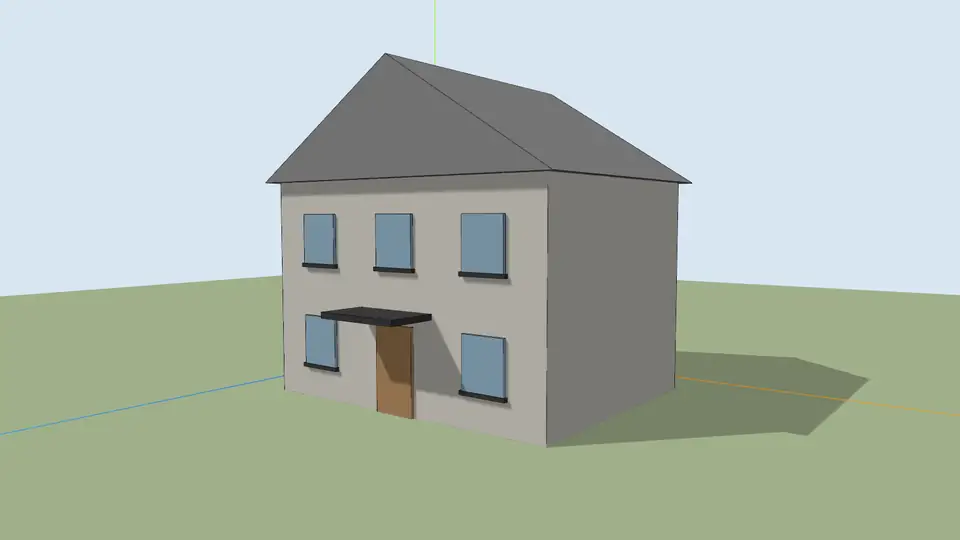
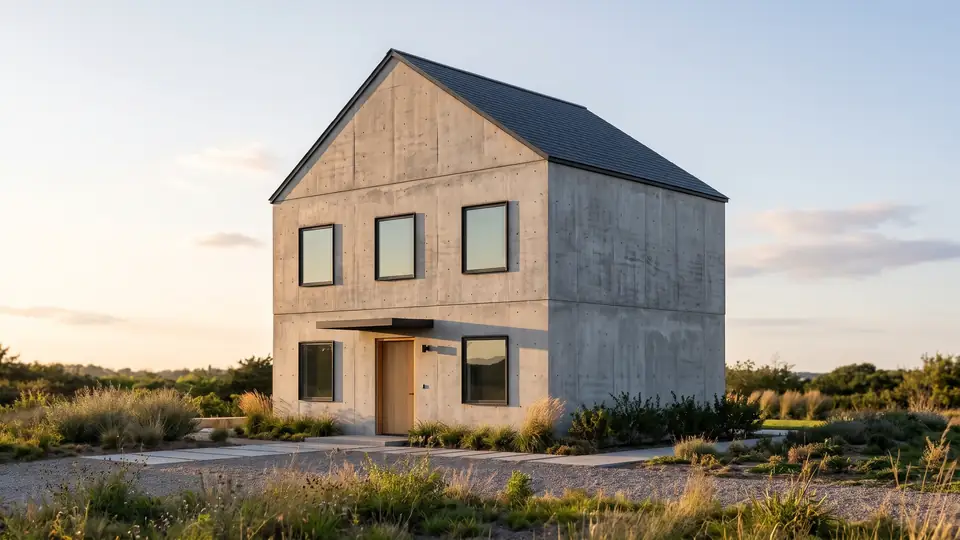
Test model, Nano Banana 2.1 at 2K, not retouched. How we tested
Three steps, nothing to set up
- 01
Screenshot your view
In SketchUp use File → Export → 2D Graphic, or just take a screenshot. Shadows on, axes and edges off.
- 02
Pick a style and a time of day
Six style presets, checked in our recipe test. Add a one-line materials note if you want.
- 03
Choose from four options
Download the one you like, or tap Brighter, Night or Add people & planting to get four more based on it.
What goes wrong with a loose Nano Banana prompt?
Paste a SketchUp screenshot into a chat with a short line like "make this photorealistic" and the model has a lot of freedom. It reads the image as a suggestion, not a drawing. The same few problems come up again and again.
- The roof gets redesigned: a flat roof turns pitched, or a shallow pitch gets steeper.
- An extra floor, a parapet or a dormer appears.
- Windows change count, size or spacing.
- The red, green and blue axis lines stay in the picture as poles or painted stripes.
- Section planes and guide lines turn into glass panels or cables.
- Black edge lines become dark trim on every corner.
- The camera is reframed, so the horizon and lens no longer match your view.
Why not just test prompts until one works?
You can, but each test costs a round, and a prompt that works on one view often fails on the next. A tilted camera, a dark interior or a busy context brings back a different problem each time.
SketchUp views add their own traps. Default colors look like intended finishes, so a beige default face may come back as beige stucco. Shadows drawn by SketchUp can turn into dark paint. The ArchFor recipes were written and tested against these cases, and the same text runs on every view, so results are more predictable from one view to the next.
What does the ArchFor preset lock?
The preset is a written recipe that goes to the model with your image. It names your upload as the authority on form and says which marks to drop. Here is the same screenshot, handled two ways.
This is best effort. These are AI images, not CAD, and fine parts such as mullions or railings can still move.
| On the same screenshot | Loose prompt | ArchFor preset |
|---|---|---|
| Massing and roofline | Open to reinterpretation | Kept from your image |
| Floor count | Can gain a floor | Kept as modeled |
| Doors and windows | Can move or multiply | Openings and rhythm kept |
| Axes, guides, section planes | Often left in | Removed |
| Black edge lines | Can become trim | Removed |
| Camera, lens, horizon | Can drift | Kept |
| Materials | Whatever the model guesses | Set by the style and your note |
How to run a Nano Banana render on a SketchUp view
- Export the view with File → Export → 2D Graphic, or take a screenshot of the viewport.
- Upload it to ArchFor. Input stays on Model screenshot.
- Choose Exterior, Interior or Landscape.
- Pick one of six styles: Warm timber, Modern minimal, Concrete & glass, Scandinavian, Mediterranean or Industrial.
- Pick Day, Golden hour or Night.
- If needed, add a note such as "zinc roof, larch soffits".
- Choose 1K, 2K or 4K and render.
1K, 2K or 4K: which size should you pick?
Every image runs on Nano Banana 2.1; you only choose the size. 1K costs 1 credit per image, 2K costs 2 and 4K costs 3, so a round of 4 is 4, 8 or 12 credits.
Use 1K for a quick, cheap preview of massing and style. 2K, the default, suits screens and client reviews. 4K is generated at 4K, not upscaled, so it takes longer and the files are large; keep it for print boards. Follow-up actions such as Brighter or Night start at the size of the image you adjust.
ArchFor at a glance
- What it is
- ArchFor is a web app that turns 3D model screenshots, sketches and existing renders into photorealistic architectural images. Credit packs from $9.99; no plugin and no subscription required.
- Inputs
- One JPG, PNG or WebP up to 10 MB: a model screenshot, clay model, hand sketch or elevation from any software
- Output
- Four images per click at the size you choose (1K, 2K or 4K; 2K by default), in the shape of your upload
- Time
- Usually under a minute at 2K; 4K takes a minute or more
- Price
- 1 credit per image at 1K, 2 at 2K, 3 at 4K. Packs from $9.99 for 80 credits (40 images at 2K); monthly plans from $19.99; no free tier
- Model
- Nano Banana 2.1, a Google Gemini image model (ArchFor isn't affiliated with Google)
- Privacy
- Uploads and results are private and deleted after 14 days
Pay for what you render
No subscription needed. Failed renders are refunded automatically.
Questions
Is this the real Nano Banana?
Yes. ArchFor uses Nano Banana 2.1, one of Google's Gemini image models. ArchFor writes the prompts; it is not affiliated with Google.
Can I write my own prompt?
No. ArchFor builds every prompt from tested recipes, and you add at most a one-line note of 200 characters for materials and details.
Which version is used?
Nano Banana 2.1, for every render. There is no quality choice; you pick the image size before each render: 1K, 2K or 4K.
Can the note change the building's shape?
No. The note covers materials and details, such as "anodised bronze frames". Form, openings and camera come from your image.
Can I keep editing a result?
Yes. On any result you can ask for More like this, Brighter, Moodier, Night, Add people & planting or Change facade material. Each makes 4 new options checked against your original upload, at the size you choose; the default is the size of the image you adjust.