
Revit 3D views
AI renders from a Revit 3D view
Export a Revit 3D view as a PNG, upload it, and ArchFor returns four photoreal renders of that view, usually in under a minute at 2K. There is no plugin to install and the model never leaves your machine.
- Export from File > Export > Images and Animations > Image
- Shaded or Consistent Colors views upload as Model screenshot
- A model of any size: only the exported image is sent
Updated November 3, 2026
Before and after
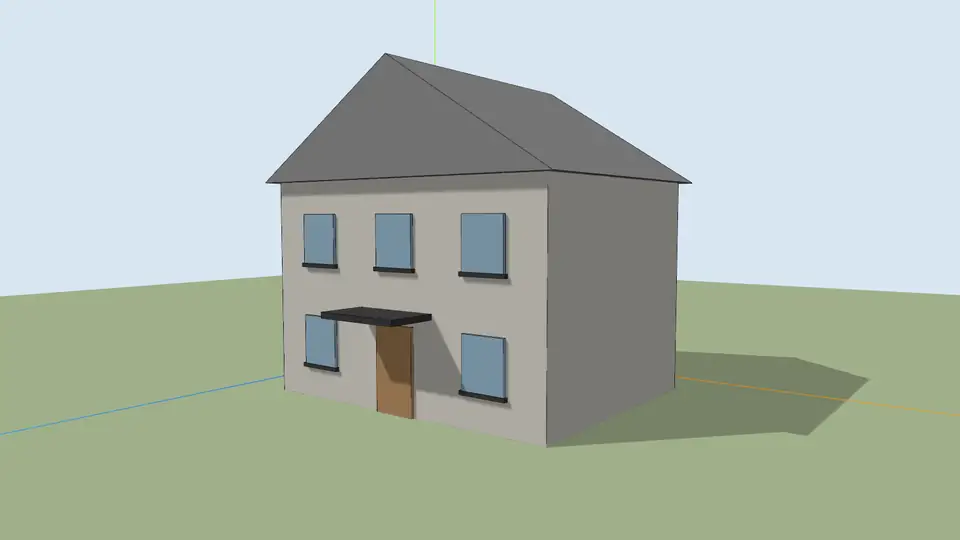
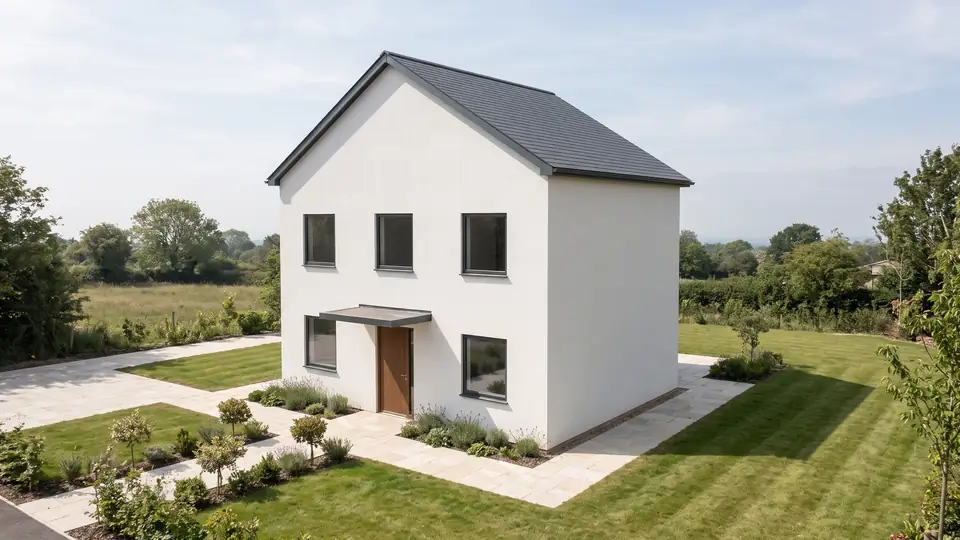
Test model, Nano Banana 2.1 at 2K, not retouched. How we tested
Three steps, nothing to set up
- 01
Screenshot your view
In SketchUp use File → Export → 2D Graphic, or just take a screenshot. Shadows on, axes and edges off.
- 02
Pick a style and a time of day
Six style presets, checked in our recipe test. Add a one-line materials note if you want.
- 03
Choose from four options
Download the one you like, or tap Brighter, Night or Add people & planting to get four more based on it.
How to export a Revit 3D view as an image
Revit's image export writes the active view to a file. It gives a cleaner input than a screenshot because you control size and can hide crop boundaries and reference planes.
Turn shadows on in Graphic Display Options before you export. Shadows make depth and overhangs easier to read in the export.
- Open the 3D view or camera view you want to render.
- Click File > Export > Images and Animations > Image.
- Under Export Range, choose Current window.
- Under Image Size, use Fit to and set 2,000 pixels or more.
- Under Options, tick Hide ref/work planes, Hide scope boxes and Hide crop boundaries.
- Set the Shaded views format to PNG and click OK.
- Upload the PNG with Model screenshot selected.
Which Revit visual style should I use?
Consistent Colors or Shaded give the most predictable result. Both show clear surfaces without baked-in lighting, so the AI decides light and material from your Style and Time of day. Realistic carries your material appearances into the export, which helps when you want them kept as hints.
| Visual style | Good for | Watch out for |
|---|---|---|
| Shaded | Clear form with surface shading | Default material greys read as concrete |
| Consistent Colors | Flat, even input with no light falloff | Strong category colors read as cladding |
| Realistic | Keeping assigned materials as hints | Low-res textures can come through blurry |
Use the section box and crop region to frame the shot
Turn on the Section Box in the 3D view's Properties to cut away neighboring buildings, site clutter or the far half of a large model. The AI renders only what the image shows, so a tight box gives it a clear subject.
Use the crop region to set the framing and aspect. ArchFor keeps the export's shape, snapped to the nearest of ratios such as 16:9, 3:2 or 4:5. Hide the crop boundary before export, or its frame line may show up as an edge in the render.
What the renders keep and where they drift
Massing, roofline, floor count, openings and structural rhythm come from your export. The camera, lens and horizon stay where Revit put them. Thin elements such as curtain wall mullions, railings and signage can move slightly. These are AI images for design review, not construction documents.
A round of four costs 8 credits at 2K, 4 at 1K or 12 at 4K. Revit is a trademark of its owner, and ArchFor is not affiliated with it.
ArchFor is a web app that turns 3D model screenshots, sketches and existing renders into photorealistic architectural images. Credit packs from $9.99; no plugin and no subscription required.
ArchFor at a glance
- What it is
- ArchFor is a web app that turns 3D model screenshots, sketches and existing renders into photorealistic architectural images. Credit packs from $9.99; no plugin and no subscription required.
- Inputs
- One JPG, PNG or WebP up to 10 MB: a model screenshot, clay model, hand sketch or elevation from any software
- Output
- Four images per click at the size you choose (1K, 2K or 4K; 2K by default), in the shape of your upload
- Time
- Usually under a minute at 2K; 4K takes a minute or more
- Price
- 1 credit per image at 1K, 2 at 2K, 3 at 4K. Packs from $9.99 for 80 credits (40 images at 2K); monthly plans from $19.99; no free tier
- Model
- Nano Banana 2.1, a Google Gemini image model (ArchFor isn't affiliated with Google)
- Privacy
- Uploads and results are private and deleted after 14 days
Pay for what you render
No subscription needed. Failed renders are refunded automatically.
Questions
Which visual style should I export?
Consistent Colors or Shaded for most views. Choose Realistic only when your assigned materials should steer the result. Strong category colors can read as cladding.
Can I render sections and elevations?
Elevations, yes: export the elevation view and choose the Elevation input, which keeps the flat frontal view. Building sections are not a good fit, since a cut through rooms reads as an odd facade.
Does a large Revit model slow it down?
No. Only the exported image is uploaded, up to 10 MB. Model size, links and worksets do not matter to ArchFor.
Can I render an interior camera view?
Yes. Export the camera view and set Space to Interior. Keep furniture families visible so the layout is drawn into the image.
Is there a Revit add-in?
No. ArchFor is browser-only. You export an image in Revit and upload it, on any computer or tablet. There is nothing to install or update.
Does Revit LT work?
Yes. Revit LT has the same image export from the File tab. Its 3D views and visual styles export to PNG the same way, and ArchFor treats the image like any other.