
SketchUp for iPad and Web
AI renders from SketchUp for iPad and SketchUp for Web
Screenshot your SketchUp for iPad view, or export a PNG from SketchUp for Web, then upload it to ArchFor in your browser. Four photoreal options come back at 2K by default, usually in under a minute. ArchFor is a web app that turns 3D model screenshots, sketches and existing renders into photorealistic architectural images. Credit packs from $9.99; no plugin and no subscription required.
- Upload from Photos or Files in iPad Safari
- One image per job, up to 10 MB
- Starter pack: $9.99 for 80 credits, no subscription required
Updated November 3, 2026
Before and after
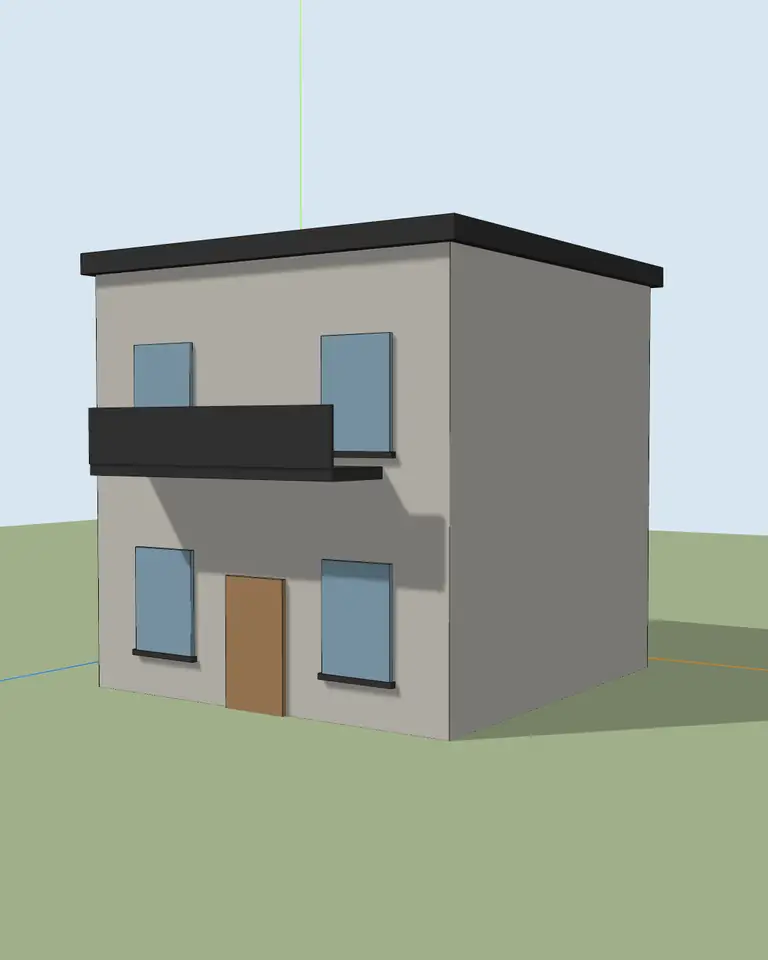
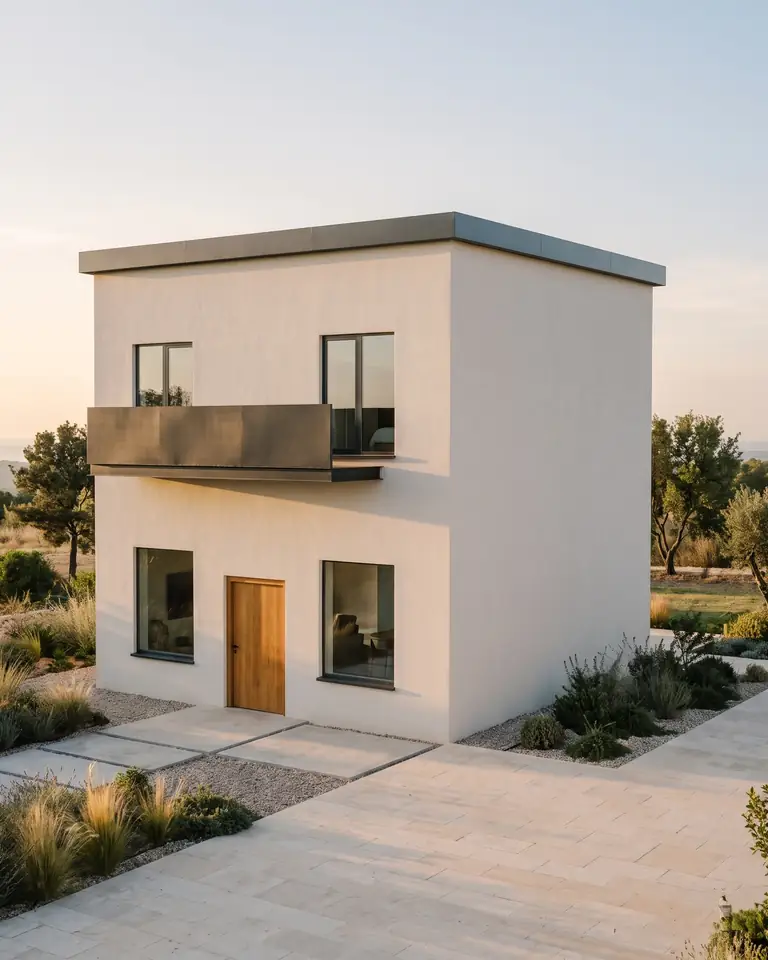
Test model, Nano Banana 2.1 at 2K, not retouched. How we tested
Three steps, nothing to set up
- 01
Screenshot your view
In SketchUp use File → Export → 2D Graphic, or just take a screenshot. Shadows on, axes and edges off.
- 02
Pick a style and a time of day
Six style presets, checked in our recipe test. Add a one-line materials note if you want.
- 03
Choose from four options
Download the one you like, or tap Brighter, Night or Add people & planting to get four more based on it.
How to screenshot a SketchUp for iPad view
A screenshot is the quickest route on an iPad. Close any open panels first so the model fills the screen.
- On an iPad without a Home button, press the top button and a volume button together. On an iPad with a Home button, press the top button and the Home button.
- With Apple Pencil, you can also swipe up from a bottom corner of the screen.
- Tap the thumbnail that appears in the corner.
- Drag the crop handles to the model area. The render keeps this shape, from 21:9 to 9:16.
- Tap Done, then Save to Photos.
How to upload from Photos in iPad Safari
ArchFor runs in Safari on iPad with no app to install. The same steps work in Chrome on iPad and on a phone.
- Open archfor.com in Safari and sign in.
- Tap the upload box and choose Photo Library. Pick Choose File instead if the file is in the Files app.
- Pick your screenshot.
- Leave Input on Model screenshot. Choose Exterior, Interior or Landscape, then a style and a time of day.
- Tap Generate 4 renders. Your four options appear on the page when they are ready.
How to export a PNG from SketchUp for Web
SketchUp for Web exports a PNG of the current view from its file menu. Menu labels can move between releases, so check your version if a name differs.
- Sign in to SketchUp for Web and open your model.
- Set up the view, and hide axes or guides if they are showing.
- Click the folder icon to open the file menu, then choose Export → PNG.
- Check the preview and download the file.
- Upload the PNG to ArchFor from your Downloads folder.
Which iPad view settings give the cleanest render?
Turn the iPad sideways before you take the screenshot. A landscape screen gives a wide 4:3 or 3:2 render, which suits most buildings. Hold it upright only for a tall tower or a narrow interior.
Use a face style that shows shaded faces, not wireframe or X-ray. Solid faces tell the model which surfaces are walls, roof and glass. Zoom until the building fills about two thirds of the frame, and leave some ground and sky around it. Pinch-zoom on a screenshot after the fact only throws away pixels.
What does the render keep from a tablet or browser view?
Your image sets the massing, roofline, floor count, openings and camera. The screenshot recipe removes interface marks: axes, guide lines, section planes, selection outlines and black edge lines.
iPad and web views often show default colors. The style you pick replaces them with believable materials, and a one-line note of up to 200 characters can name finishes. Small items such as railings or signage can shift, and the results are not for construction documents.
ArchFor at a glance
- What it is
- ArchFor is a web app that turns 3D model screenshots, sketches and existing renders into photorealistic architectural images. Credit packs from $9.99; no plugin and no subscription required.
- Inputs
- One JPG, PNG or WebP up to 10 MB: a model screenshot, clay model, hand sketch or elevation from any software
- Output
- Four images per click at the size you choose (1K, 2K or 4K; 2K by default), in the shape of your upload
- Time
- Usually under a minute at 2K; 4K takes a minute or more
- Price
- 1 credit per image at 1K, 2 at 2K, 3 at 4K. Packs from $9.99 for 80 credits (40 images at 2K); monthly plans from $19.99; no free tier
- Model
- Nano Banana 2.1, a Google Gemini image model (ArchFor isn't affiliated with Google)
- Privacy
- Uploads and results are private and deleted after 14 days
Pay for what you render
No subscription needed. Failed renders are refunded automatically.
Questions
Does it work in iPad Safari?
Yes. Open archfor.com in Safari, upload from Photos or Files, and view or download the results on the iPad. No app or plugin is needed.
Do I need a SketchUp subscription?
Not for ArchFor. It reads an image, so any plan that lets you see and screenshot your model is enough. SketchUp's own AI Render is a separate feature that needs a Go, Pro or Studio subscription.
Can I use Apple Pencil sketches?
Yes, as a drawing in its own right. Upload the sketch and set Input to Hand sketch; the recipe does not add floors, wings, balconies or roof shapes you did not draw. Pencil markups on top of a model screenshot are not read as instructions and may show up as objects, so upload a clean view.
Do I have to finish the job on the same device?
No. Results stay in your account for 14 days, so you can upload on the iPad and download on your desktop later.
Can I render from an iPhone too?
Yes. The site works on phones. A phone screenshot is tall, so the render comes back tall unless you crop it first.
How many renders does the cheapest pack give me?
Forty renders at 2K. The Starter pack is $9.99 for 80 credits, and each 2K image costs 2 credits, so that is 10 clicks of 4 options. At 1K the same pack makes 80 images; at 4K, 24 (six rounds). Credits last 12 months.