
Gardens and sites
AI renders for landscape and garden designs
Upload a perspective view of your garden or site model, set Space to Landscape, and ArchFor renders planting beds, lawns, paths and water as the subject. Each click returns four options at 1K, 2K or 4K, planted for a temperate climate unless your image shows otherwise. ArchFor is a web app that turns 3D model screenshots, sketches and existing renders into photorealistic architectural images. Credit packs from $9.99; no plugin and no subscription required.
- Planting, paving, lawn and water are the subject
- Name species or materials in a 200-character note
- Perspective views only; plan views are not supported
Updated November 4, 2026
Before and after
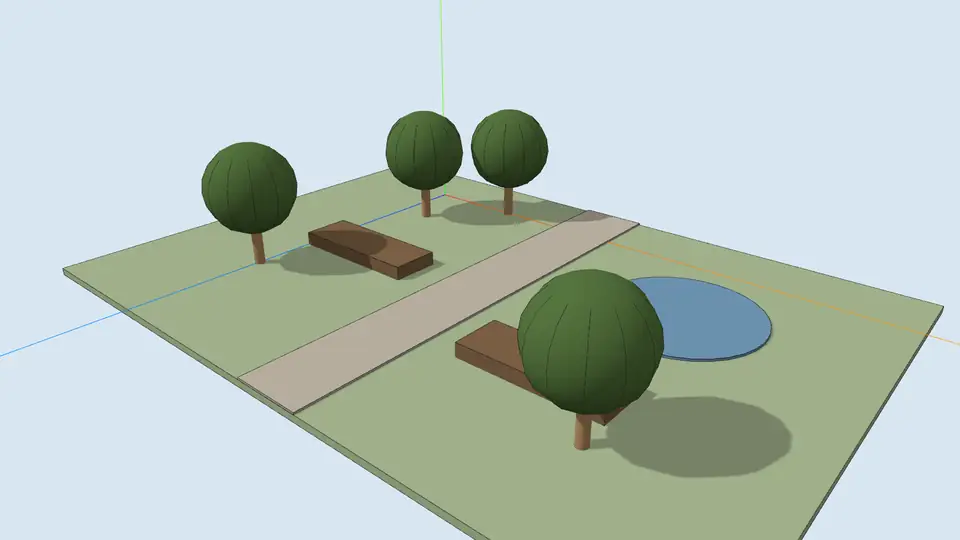
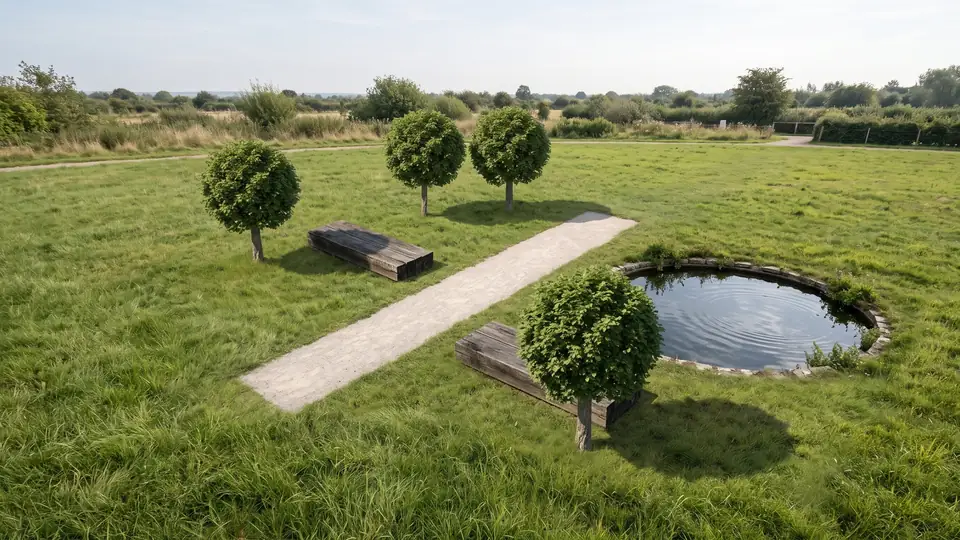
Test model, Nano Banana 2.1 at 2K, not retouched. How we tested
Three steps, nothing to set up
- 01
Screenshot your view
In SketchUp use File → Export → 2D Graphic, or just take a screenshot. Shadows on, axes and edges off.
- 02
Pick a style and a time of day
Six style presets, checked in our recipe test. Add a one-line materials note if you want.
- 03
Choose from four options
Download the one you like, or tap Brighter, Night or Add people & planting to get four more based on it.
How does the landscape preset treat planting, paving, lawn and water?
With Space set to Landscape, the ground becomes the subject and buildings become backdrop. Your outlines decide where each part goes.
- Planting beds are filled with species and sizes that fit a temperate climate. If your image clearly shows palms, cacti or other cues, the planting follows them.
- Paths and paving follow your modeled edges. The style and note set the material.
- Green ground surfaces read as lawn.
- Pools, ponds and rills become water.
- Buildings keep their massing and openings, as in any ArchFor render.
How to name plant species in the note
The note holds up to 200 characters. Name the main plants and hard materials, for example: "multi-stem birch, Miscanthus and Calamagrostis, lavender edging, sandstone setts".
Expect plants that look right at a glance, not botanically exact ones. Name the hard materials too: "self-binding gravel", "Corten edging" or "granite setts" each read clearly. If the design sits outside a temperate climate, say so, for example "dry Mediterranean planting" or "tropical planting", so the default does not take over. Do not use a render as a planting schedule. One species per bed reads better than a long list; past about six names, the note gets diluted. Leaf shape and flower color may differ from the species you named.
How to set up a garden view in your model
A plain clay model works too: set Input to Clay / white model and the style gives every surface its material. A perspective hand sketch of the garden also works with Input set to Hand sketch; a plan drawing does not. To keep thin edges such as path borders and steps sharp, export the view at about 2,000 pixels wide instead of capturing a small window.
- Use a perspective at standing height, or a low aerial that shows the layout.
- Give beds, lawn, paving and water each their own flat color, so the edges are clear.
- Keep simple placeholder trees. A rough canopy shape is enough to set position and size.
- Model water as a flat face, a little below the paving edge.
- Export the view, or take a screenshot of the viewport.
- Upload it, set Space to Landscape and pick a style and time of day.
What can a landscape render not tell you?
It shows one moment in a garden that does not yet exist. Treat it as a mood image, not a design check.
- Mature size: trees may be drawn at any age, not at planting size.
- Levels and slopes: ground you did not model is guessed.
- Shade over a day or a year: the light is one time of day.
- Drainage, soil and planting density are not considered.
How to change a garden render you like
Download the result and upload it to the Render Enhancer to change one thing while the layout stays. Winter adds a thin layer of snow and bare deciduous trees. Night turns the same view to blue hour, with warm light in the windows and a few exterior lights. Add people places visitors on paths and lawns, and Golden hour gives low, warm light across the planting.
Each change makes 4 new options at the size you pick, at the same credits as a first render: 1K costs 1 credit per image, 2K 2 and 4K 3. Downloads are free.
Which style suits a garden design?
The style sets the hard landscape and the overall planting mood.
| Style | Landscape palette |
|---|---|
| Mediterranean | Warm stone, olive trees, lavender, terracotta |
| Concrete & glass | Grey concrete, gravel, ornamental grasses |
| Warm timber | Cedar or larch, oak or stone paving |
| Modern minimal | Pale stone paving, very few objects |
| Scandinavian | Light wood, pale grey surfaces, soft daylight |
| Industrial | Exposed brick, blackened steel, polished concrete |
ArchFor at a glance
- What it is
- ArchFor is a web app that turns 3D model screenshots, sketches and existing renders into photorealistic architectural images. Credit packs from $9.99; no plugin and no subscription required.
- Inputs
- One JPG, PNG or WebP up to 10 MB: a model screenshot, clay model, hand sketch or elevation from any software
- Output
- Four images per click at the size you choose (1K, 2K or 4K; 2K by default), in the shape of your upload
- Time
- Usually under a minute at 2K; 4K takes a minute or more
- Price
- 1 credit per image at 1K, 2 at 2K, 3 at 4K. Packs from $9.99 for 80 credits (40 images at 2K); monthly plans from $19.99; no free tier
- Model
- Nano Banana 2.1, a Google Gemini image model (ArchFor isn't affiliated with Google)
- Privacy
- Uploads and results are private and deleted after 14 days
Pay for what you render
No subscription needed. Failed renders are refunded automatically.
Questions
Can I choose plant species?
Yes, through the note. Name a few key species in 200 characters. The results look like those plants at a glance, not to a botanist.
Can I upload a plan view?
No. Plan views and top-down site plans are not supported. Take a perspective or a low aerial view from your model instead.
Can I show a different season?
Winter, yes. Download the result, open the Render Enhancer and run the Winter action on it. Other seasons are not a preset.
Can I add people to a garden render?
Yes. Use Add people & planting on a result, or Add people in the Render Enhancer. You cannot choose exactly where each person stands, so pick the best of the four.
Does it keep my paving pattern?
Mostly. Paving areas keep the outlines you modeled. A detailed joint pattern can simplify, so name it in the note, for example "stretcher-bond clay pavers".
Does it work for a large site or masterplan?
Yes, from a perspective aerial. Expect small items such as benches, lamps and edging to simplify or shift at that scale.