
Day to night render
Turn a day render into dusk or night
Upload a daytime render and run the Night action: you get four blue-hour versions with warm light behind the glass and a deep-blue sky. Massing, openings and camera stay the same as your day image.
- Night action: blue hour, warm interior light, a few exterior lights
- Golden hour action for the step in between
- Each step makes 4 options, 8 credits at 2K
Updated November 3, 2026
Before and after
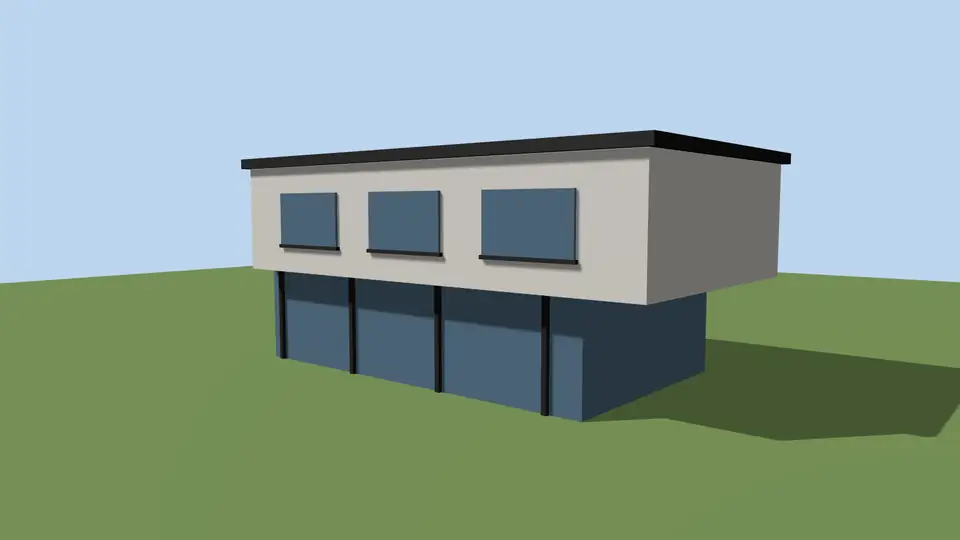
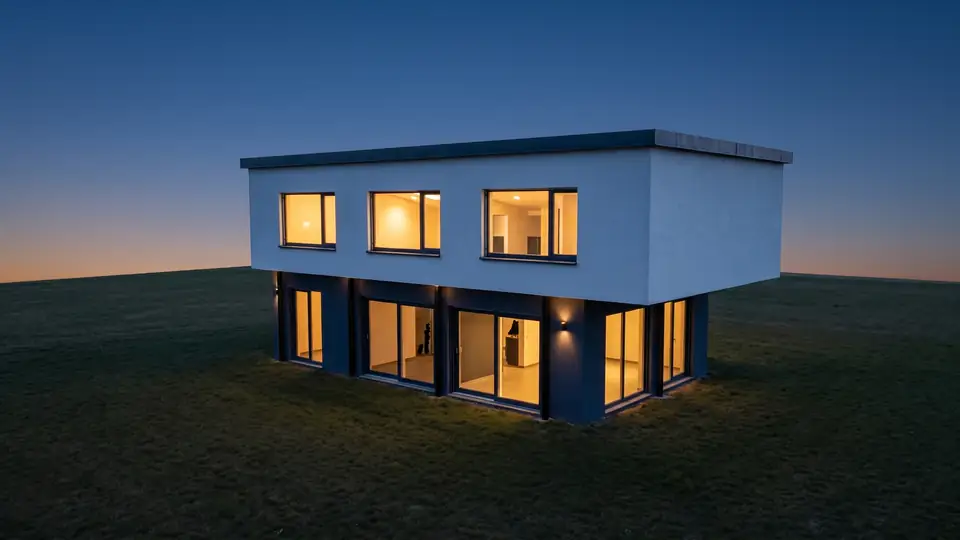
Test model, Nano Banana 2.1 at 2K, not retouched. How we tested
Three steps, nothing to set up
- 01
Export your render
Save a still from Enscape, Lumion, Twinmotion, D5 or any renderer as JPG or PNG.
- 02
Pick one change
Photoreal, golden hour, night, people, planting, sky or winter, and how far it may go.
- 03
Choose from four options
Download one, or apply the next change to it, for example Photoreal and then Night.
How to make a day, golden hour and night sequence from one image
Clients often want the same view at three times of day. Build the sequence from one upload so the camera never moves. Each step is a separate run of four images, so you pick the best frame before moving on.
- Upload the day render. If you run Make it photoreal first, download the version you like and upload it again; that is the day image.
- Run the Golden hour action. You get four versions with low warm sun and long soft shadows.
- On the golden hour version you like, click Night. Four blue-hour versions follow, checked against your original upload.
- Download all three. If you need print size, run the steps at 4K; each image downloads at the size it was made.
What does the Night action do?
The recipe changes only the time of day. Nothing about the building is redesigned.
Materials, planting and anything else in the frame stay as they were; only the light on them changes. Strength still applies: Subtle keeps finishes exactly, while Balanced lets them be refined for realism.
- Moves the scene to blue hour, shortly after sunset.
- Turns on warm interior lights that you see through the glazing.
- Adds a few discreet exterior lights, not a full lighting scheme.
- Keeps the sky deep blue with a faint glow at the horizon, never black.
How is this different from Night in Model → Render?
Model → Render on the home page has its own Night setting for models and sketches. That recipe aims for blue hour twenty to thirty minutes after sunset, warm 2700 K light through the glazing and subtle exterior wall washers. Use it when you start from a model screenshot. Use this page when you already have a finished day render.
A Night button also appears on every result, so you can switch a fresh render to night without a new upload.
Which renders convert to night well?
Views with plenty of glazing give the best results, because the interior glow carries the image. A blank concrete wall has nothing to light, so expect a darker, quieter picture. Interior lights are placed where the glass is; the AI decides which rooms glow.
Hard midday sun is harder to convert than soft daylight, because crisp cast shadows can linger in the night version. If your day image has strong shadows, run Make it photoreal on Subtle first, then Night on that result.
This is an AI image. Light fixtures are suggested, not designed, so do not use it as a lighting plan.
ArchFor is a web app that turns 3D model screenshots, sketches and existing renders into photorealistic architectural images. Credit packs from $9.99; no plugin and no subscription required.
ArchFor at a glance
- What it is
- ArchFor is a web app that turns 3D model screenshots, sketches and existing renders into photorealistic architectural images. Credit packs from $9.99; no plugin and no subscription required.
- Inputs
- One JPG, PNG or WebP up to 10 MB, exported from any renderer
- Output
- Four images per click at the size you choose (1K, 2K or 4K; 2K by default), in the shape of your upload
- Time
- Usually under a minute at 2K; 4K takes a minute or more
- Price
- 1 credit per image at 1K, 2 at 2K, 3 at 4K. Packs from $9.99 for 80 credits (40 images at 2K); monthly plans from $19.99; no free tier
- Model
- Nano Banana 2.1, a Google Gemini image model (ArchFor isn't affiliated with Google)
- Privacy
- Uploads and results are private and deleted after 14 days
Pay for what you render
No subscription needed. Failed renders are refunded automatically.
Questions
Are lights turned on inside?
Yes. Warm interior light appears behind the glazing. You cannot choose which rooms are lit; the AI picks them from the window layout.
Can I turn a night render into day?
No. Night to day is not offered as a preset, and the optional note covers materials and details only, so it cannot ask for daylight. Start from a day render or model screenshot instead.
Are reflections kept?
Yes, and they are updated for night. Glass picks up the dusk sky and the interior glow, and wet or polished surfaces show the new exterior lights.
How much does a full day-to-night sequence cost?
Golden hour then Night costs 16 credits at 2K, or 24 if you run Make it photoreal first. The $9.99 Starter pack (80 credits) covers at least three sequences.
Will the building change at night?
It should not. Massing, roofline, openings and camera are held to your upload. Thin details such as railings can still shift slightly.
Can I get dusk rather than full night?
Golden hour is the closest preset to dusk: low warm sun with long shadows. Night is blue hour, so the sky stays deep blue rather than black. There is no setting between the two.