
Enscape render enhancer
Enhance Enscape renders with AI
Take a screenshot from Enscape, upload it, and ArchFor returns four versions with real glass reflections, natural planting and a believable sky. It works with any Enscape license, because ArchFor only reads the exported image.
- Works with any Enscape export saved as PNG or JPG
- No Enscape plan or add-on required
- 4 options per run at 1K, 2K or 4K, usually under a minute at 2K
Updated November 3, 2026
Before and after
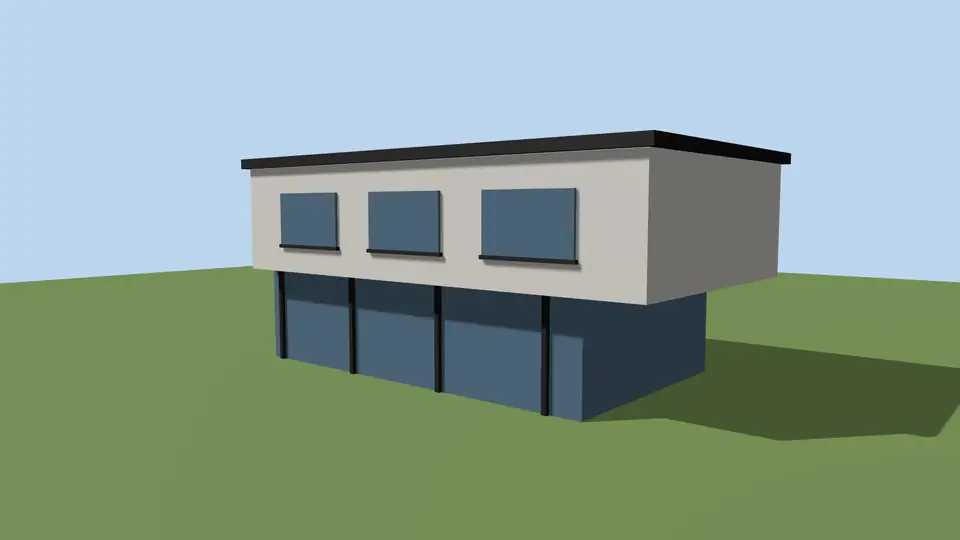
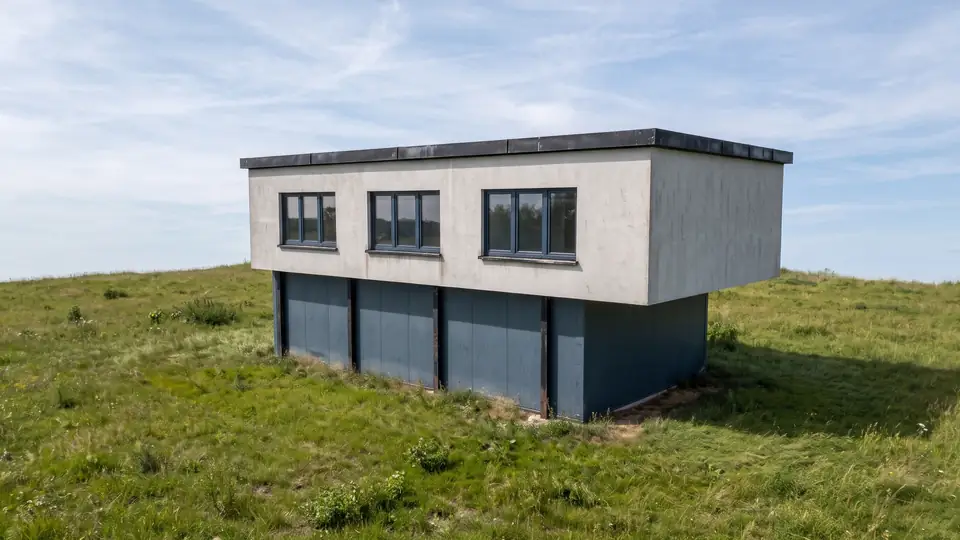
Test model, Nano Banana 2.1 at 2K, not retouched. How we tested
Three steps, nothing to set up
- 01
Export your render
Save a still from Enscape, Lumion, Twinmotion, D5 or any renderer as JPG or PNG.
- 02
Pick one change
Photoreal, golden hour, night, people, planting, sky or winter, and how far it may go.
- 03
Choose from four options
Download one, or apply the next change to it, for example Photoreal and then Night.
How to export an Enscape view for AI enhancement
Enscape saves stills with the Screenshot button in its viewport toolbar. Set the output first, then capture. Menu names below follow the Enscape documentation at the time of writing (November 2026); check your version if a label differs.
- In Enscape, open Visual Settings and go to the Output tab. Pick a preset such as Full HD or Ultra HD, or a custom size. ArchFor outputs at most 4K, so 8K exports add upload size without adding detail.
- In the Main tab, set Rendering Quality to Ultra to reduce grain.
- If you added your own watermark under General Settings, Customization, switch it off; the AI may try to repaint it.
- Choose the view in View Management, then click Screenshot (Shift+F11 by default) and save as PNG or JPG. EXR and TGA files cannot be uploaded.
- Keep the file under 10 MB, upload it here, and leave Make it photoreal on Balanced.
How is this different from Enscape's own AI Enhancer?
Enscape has a built-in AI Enhancer from version 4.1. According to Chaos, it focuses on people and vegetation assets, needs a non-trial license and a Chaos account, and works up to 2048 x 2048 pixels. It runs inside Enscape on your project, which is useful if you want to stay in one program.
ArchFor works on the finished image instead. It retouches the whole frame: glass, concrete, timber, shadows and sky, as well as plants. It also offers whole-scene actions such as Night, Winter or Replace sky, each as four options. Enscape Premium, a separate plan, adds Veras AI credits at the time of writing; you need none of it for ArchFor.
| Enscape AI Enhancer | ArchFor Render Enhancer | |
|---|---|---|
| Where it runs | Inside Enscape 4.1 or later | In the browser, on an exported image |
| Main target | People and vegetation assets | Whole frame, one chosen action |
| License | Non-trial Enscape license | ArchFor credits; no Enscape plan needed |
| Output size | Up to 2048 x 2048 | 1K, 2K or 4K, generated at that size |
What changes in a typical Enscape render?
Enscape exteriors tend to show the same few library trees, mirror-like glazing and a clean gradient sky. The photoreal action varies the foliage, gives the glass partial reflections with some interior visible, and puts real clouds behind the roof. Balanced keeps every material recognizable; Strong can repaint planting more freely.
Thin Enscape line work, such as balustrade rods, may soften. Text on signs is unreliable. These are AI images for presentations, not for construction documents.
ArchFor is a web app that turns 3D model screenshots, sketches and existing renders into photorealistic architectural images. Credit packs from $9.99; no plugin and no subscription required.
ArchFor at a glance
- What it is
- ArchFor is a web app that turns 3D model screenshots, sketches and existing renders into photorealistic architectural images. Credit packs from $9.99; no plugin and no subscription required.
- Inputs
- One JPG, PNG or WebP up to 10 MB, exported from any renderer
- Output
- Four images per click at the size you choose (1K, 2K or 4K; 2K by default), in the shape of your upload
- Time
- Usually under a minute at 2K; 4K takes a minute or more
- Price
- 1 credit per image at 1K, 2 at 2K, 3 at 4K. Packs from $9.99 for 80 credits (40 images at 2K); monthly plans from $19.99; no free tier
- Model
- Nano Banana 2.1, a Google Gemini image model (ArchFor isn't affiliated with Google)
- Privacy
- Uploads and results are private and deleted after 14 days
Pay for what you render
No subscription needed. Failed renders are refunded automatically.
Questions
Do I need Enscape Premium?
No. ArchFor reads only the exported image, so any Enscape license that can save a screenshot works. Enscape Premium is a Chaos plan that bundles Veras AI; it has no effect on what ArchFor can do with your file.
Can it fix grainy Enscape renders?
It reduces grain in most cases, but start with a cleaner export. Set Rendering Quality to Ultra in the Main tab before you capture. Subtle strength cleans light and texture without touching materials.
Can I enhance an Enscape panorama?
No. Panoramas and 360° images are not supported. Capture a normal still view with the Screenshot button, save it as PNG or JPG, and upload that.
Which file format should I use?
PNG or JPG. ArchFor accepts JPG, PNG or WebP up to 10 MB. EXR and TGA exports from Enscape cannot be uploaded.
Can I add people instead of using Enscape assets?
Yes. Upload the screenshot and choose Add people, which places three to six people at the correct scale. Enscape and Chaos are trademarks of their owner; ArchFor is not affiliated with them.
Does it matter which modeling program Enscape runs in?
No. Enscape for Revit, SketchUp, Rhino, Archicad or Vectorworks saves the same kind of screenshot. ArchFor never receives the model, only the saved picture, and deletes it after 14 days.