
Rhino 7 or later, Mac or Windows
AI renders from a Rhino viewport
Save a Rhino viewport with ViewCaptureToFile, upload the PNG, and ArchFor returns four photoreal renders from that exact camera. You skip materials, lights and render settings inside Rhino.
- Works from any Rhino 7 or 8 capture, Mac or Windows
- Arctic mode captures upload best as Clay / white model
- Only the PNG is uploaded, never the .3dm file
Updated November 3, 2026
Before and after
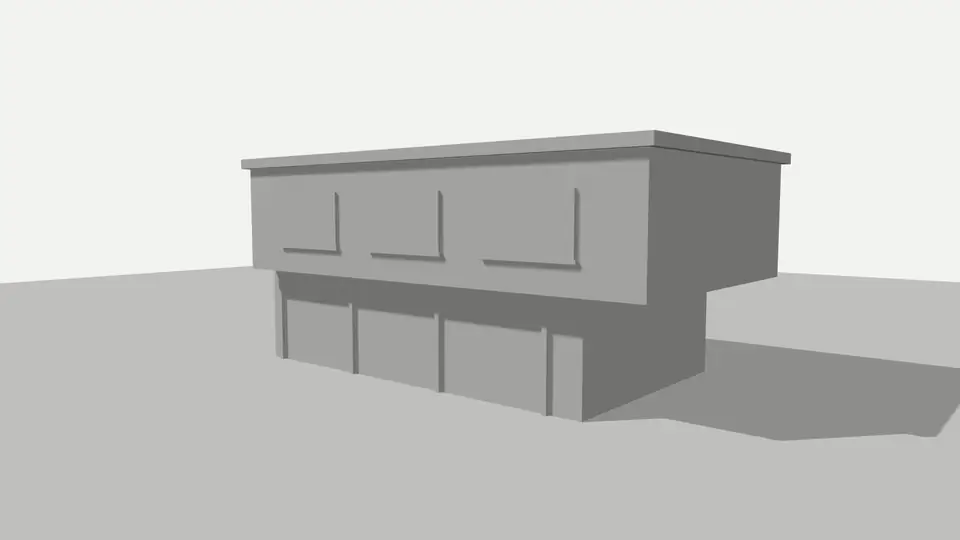
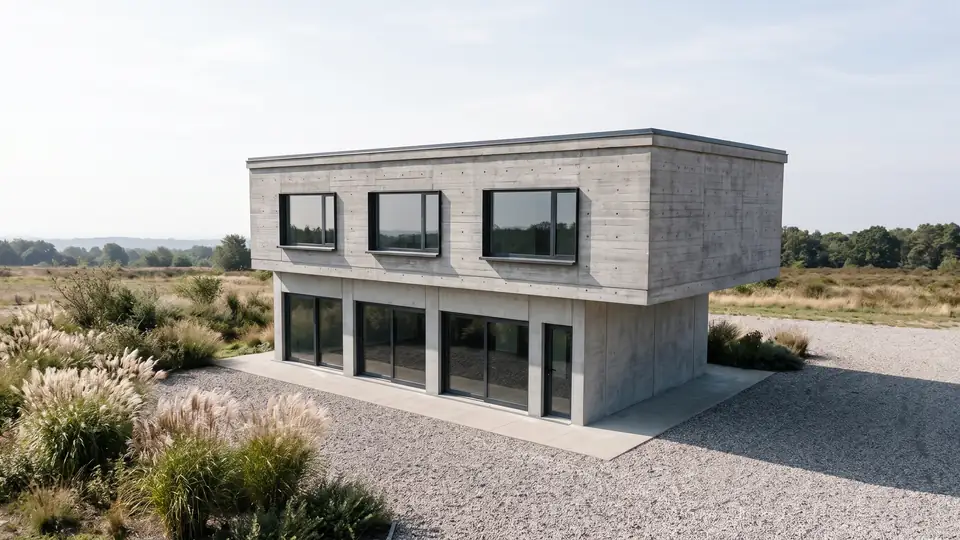
Test model, Nano Banana 2.1 at 2K, not retouched. How we tested
Three steps, nothing to set up
- 01
Screenshot your view
In SketchUp use File → Export → 2D Graphic, or just take a screenshot. Shadows on, axes and edges off.
- 02
Pick a style and a time of day
Six style presets, checked in our recipe test. Add a one-line materials note if you want.
- 03
Choose from four options
Download the one you like, or tap Brighter, Night or Add people & planting to get four more based on it.
How to capture a Rhino viewport for AI rendering
ViewCaptureToFile saves the active viewport as an image at a size you choose. It is cleaner than a screen grab because it skips the Rhino interface and can leave out the grid and axes.
- Set up the camera in a Perspective viewport. Lock the lens length you want.
- Switch the viewport to Arctic display mode.
- Type ViewCaptureToFile and press Enter.
- Clear Grid, World axes and CPlane axes. Leave Transparent background off.
- Under Resolution, choose Custom, keep Lock viewport aspect ratio on, and set the long side to 2,000 pixels or more.
- Save as PNG and upload it to ArchFor with Clay / white model selected.
Which Rhino display mode gives the cleanest input?
Arctic gives the cleanest input. It shows every object white with soft shadows, so the AI reads pure form and light with no layer colors to misinterpret. That is why this page opens with the Clay / white model input.
| Display mode | What the capture shows | ArchFor input |
|---|---|---|
| Arctic | White objects, soft shadows | Clay / white model |
| Shaded | Layer colors on surfaces | Model screenshot |
| Rendered | Assigned materials and textures | Model screenshot |
| Pen | Black lines on white | Hand sketch |
Why layer colors and edges matter
In Shaded mode a bright red layer can be read as red cladding. Pick the Model screenshot input there; its recipe removes axes, guides, selection outlines and black edge lines, but it still takes color as a hint. Rendered mode passes your Rhino materials through as hints too.
Pen mode works, but a line capture carries less depth information. Expect more variation between options, as with any line drawing. Thin geometry such as fins, cables or mullion grids can shift or merge in the result.
What you get and what it costs
Each click gives four images at 1K, 2K or 4K that keep the capture's camera, horizon and massing. Floor count and openings come from the model. Materials come from the Style you pick, from Warm timber to Industrial, plus an optional note such as "perforated copper screen".
A round costs 4 credits at 1K, 8 at 2K or 12 at 4K, and each image downloads at the size it was made. Rhino is a trademark of its owner; ArchFor is not affiliated with it.
ArchFor is a web app that turns 3D model screenshots, sketches and existing renders into photorealistic architectural images. Credit packs from $9.99; no plugin and no subscription required.
ArchFor at a glance
- What it is
- ArchFor is a web app that turns 3D model screenshots, sketches and existing renders into photorealistic architectural images. Credit packs from $9.99; no plugin and no subscription required.
- Inputs
- One JPG, PNG or WebP up to 10 MB: a model screenshot, clay model, hand sketch or elevation from any software
- Output
- Four images per click at the size you choose (1K, 2K or 4K; 2K by default), in the shape of your upload
- Time
- Usually under a minute at 2K; 4K takes a minute or more
- Price
- 1 credit per image at 1K, 2 at 2K, 3 at 4K. Packs from $9.99 for 80 credits (40 images at 2K); monthly plans from $19.99; no free tier
- Model
- Nano Banana 2.1, a Google Gemini image model (ArchFor isn't affiliated with Google)
- Privacy
- Uploads and results are private and deleted after 14 days
Pay for what you render
No subscription needed. Failed renders are refunded automatically.
Questions
Which display mode should I capture in?
Arctic. White surfaces with soft shadows give the clearest read of form. Use Shaded or Rendered only when you want your colors or materials to guide the result, and pick Model screenshot for those.
Does it work with Rhino on Mac?
Yes. ViewCaptureToFile is in Rhino for Mac as well. ArchFor runs in the browser, so a Mac, a Windows PC or an iPad all upload the same way.
Can I render Grasshopper geometry?
Yes. ArchFor sees pixels only, so a capture of the Grasshopper preview works. For a cleaner input, bake the geometry to plain layers first, since preview tints can read as material color.
Can I use a Raytraced viewport capture?
Yes, but then you are improving an existing render. Upload it to the Render Enhancer and pick Make it photoreal for that case.
Will the camera angle change?
No. The capture sets camera position, lens and horizon, and the recipe holds them. Crop changes only to snap to the nearest supported aspect ratio, such as 16:9 or 3:2.
What capture size should I use?
Use 2,000 to 3,000 pixels on the long side. Larger captures add upload time without adding much detail, even for 4K results. Keep the PNG under 10 MB.